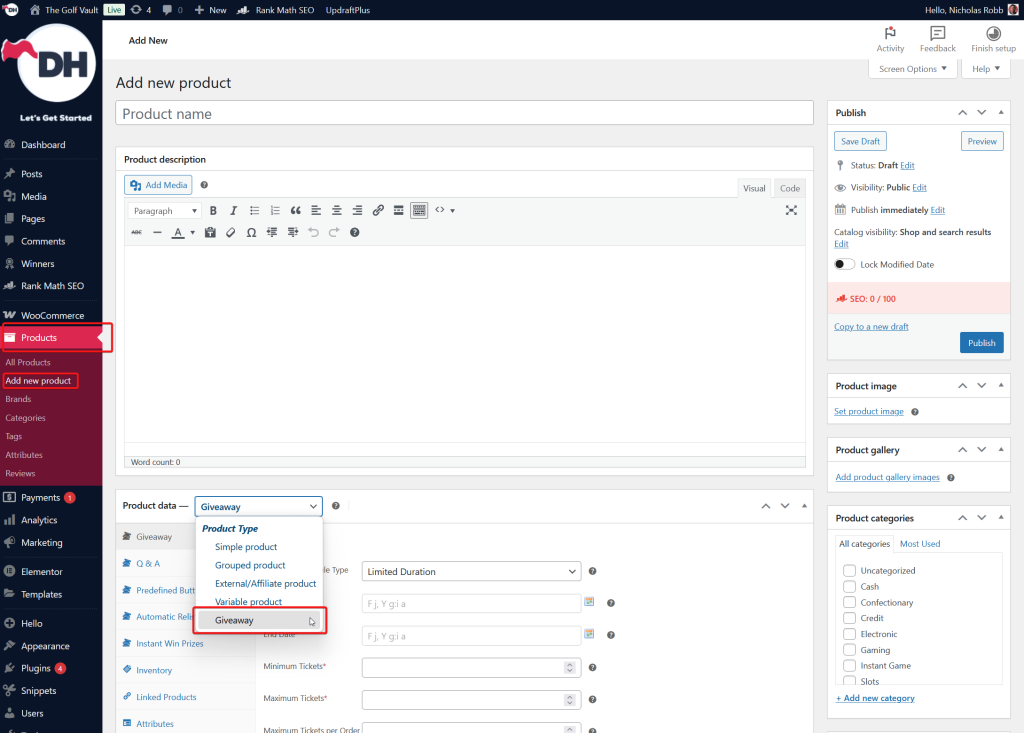
1. Add a Competition #
- On the Dashboard, go to Products > Add New Products
- Set the Product Data to ‘Giveaway‘
2. Input the Essential Details #
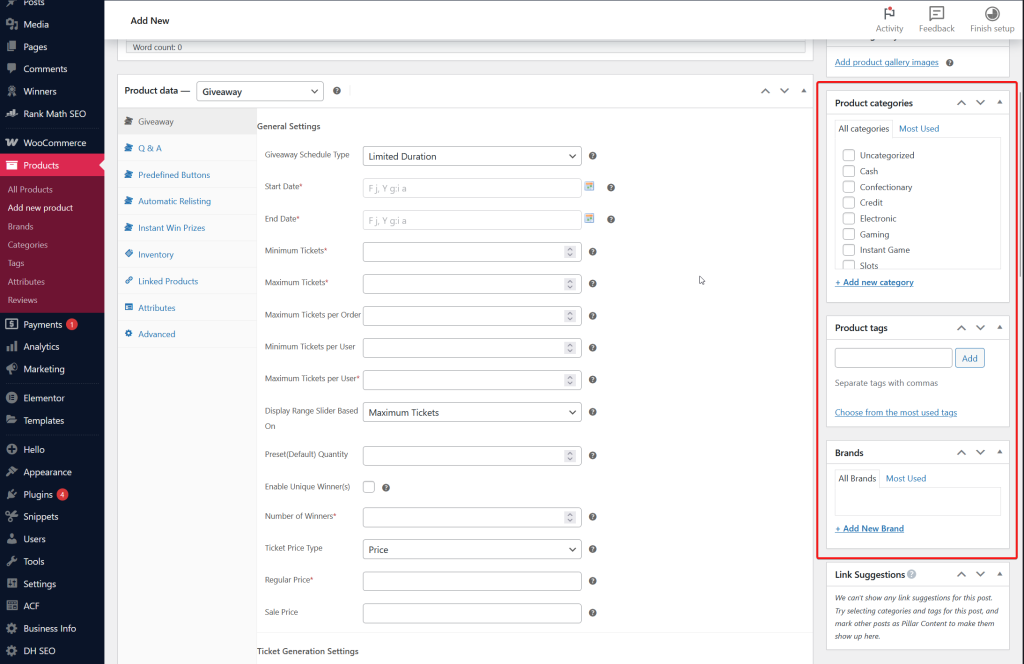
Fill in the mandatory fields:
- Giveaway Schedule Type – The type of competition.
- Start Date – Starting date of the competition.
- End Date – Competition end date.
- Minimum Tickets – Minimum ticket number that has to be purchased in order for the competition to be successful.
- Maximum Tickets – Maximum ticket number that has to be purchased in order for the competition to be successful.
- Maximum Tickets per User – Maximum number of tickets each user can purchase.
- Number of Winners – the maximum number of winners for the competition.
- Ticket Price Type
- Price – to input an amount
- Free – for free competitions
- Regular Price – per ticket price.
- Ticket Starting number
- Winner Selection Method – how a competition winner is selected
- Automatic – the system randomly selects the winner/s
- Manual – manually select the competition winner
3. Ticket Generation Settings #
Mandates how users select the tickets for the competition
- Ticket Generation Type
- Automatic – users do not get to pick ticket numbers
- User chooses the ticket- user get to pick ticket numbers
- Ticket Number Pattern
- For Automatic
- Shuffled
- Sequential
- Random
- For User chooses the ticket
- Sequential
- Shuffled
- For Automatic
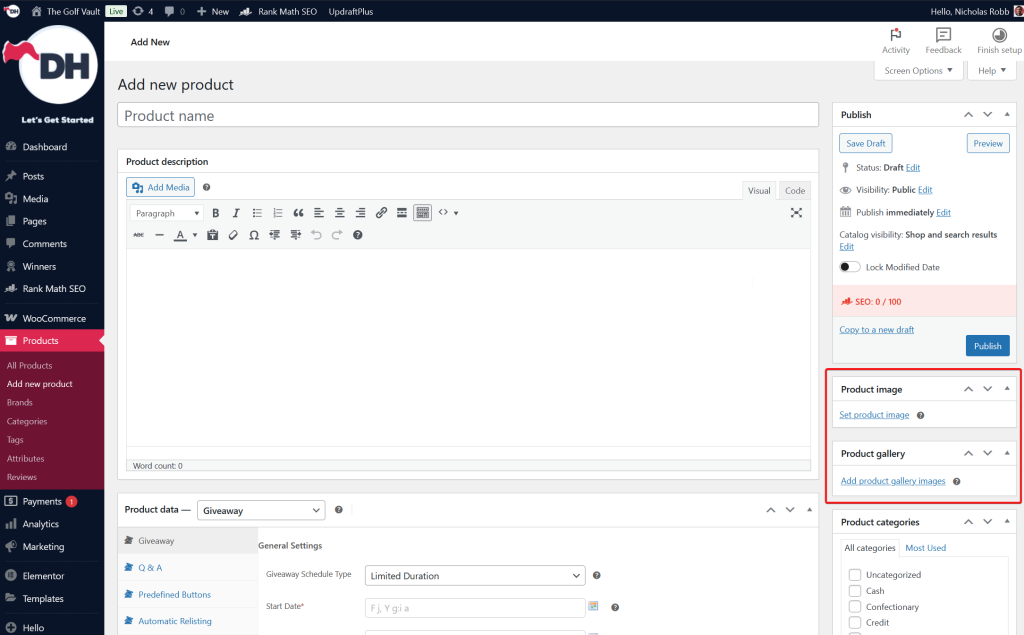
4. Add competition media files #
Showing a great competition image boosts conversions.
- Product Image (1080 x 1080) – the main competition thumbnail. Shows in the competition cards.
- Product Gallery (1080 x 1080) – additional images to boost the prize
5. Competition Categories and Tag #
Adding a competition category and tag make it easier to manage your competitions.
- Product Categories – competition can be assigned to unlimited categories.
- Product Tags – competition can be assigned to unlimited tag.
- (Optional) Brand – you might want to add a brand for your competition prizes
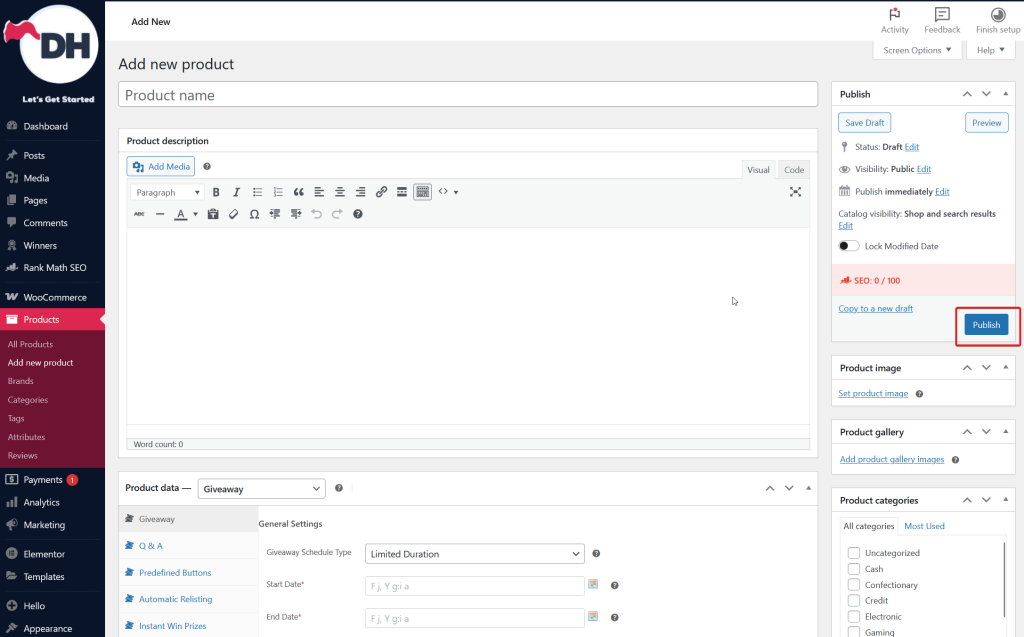
6. Publish your competition! #
Now that you are ready to launch your first competition. On the rights side on the dashboard, click the ‘Publish’ button and make it live.