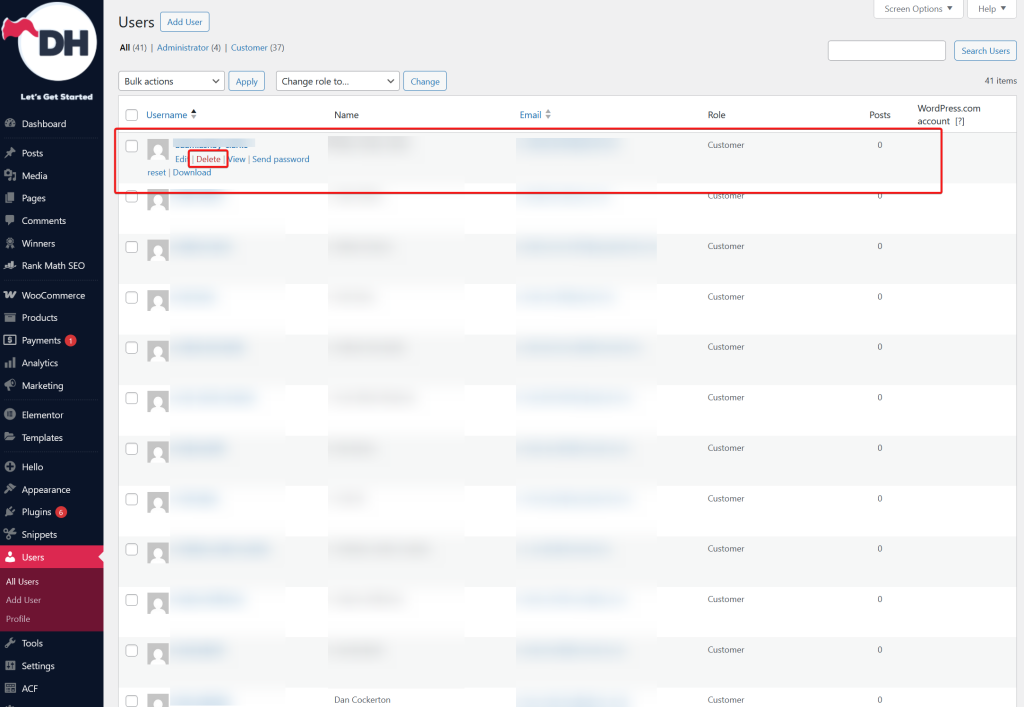
Managing customers and user accounts is an essential part of running a eCommerce site. This guide walks you through how to view, edit, and manage your website’s users including customers, admins, and shop managers.
1. Accessing the User Management Panel #
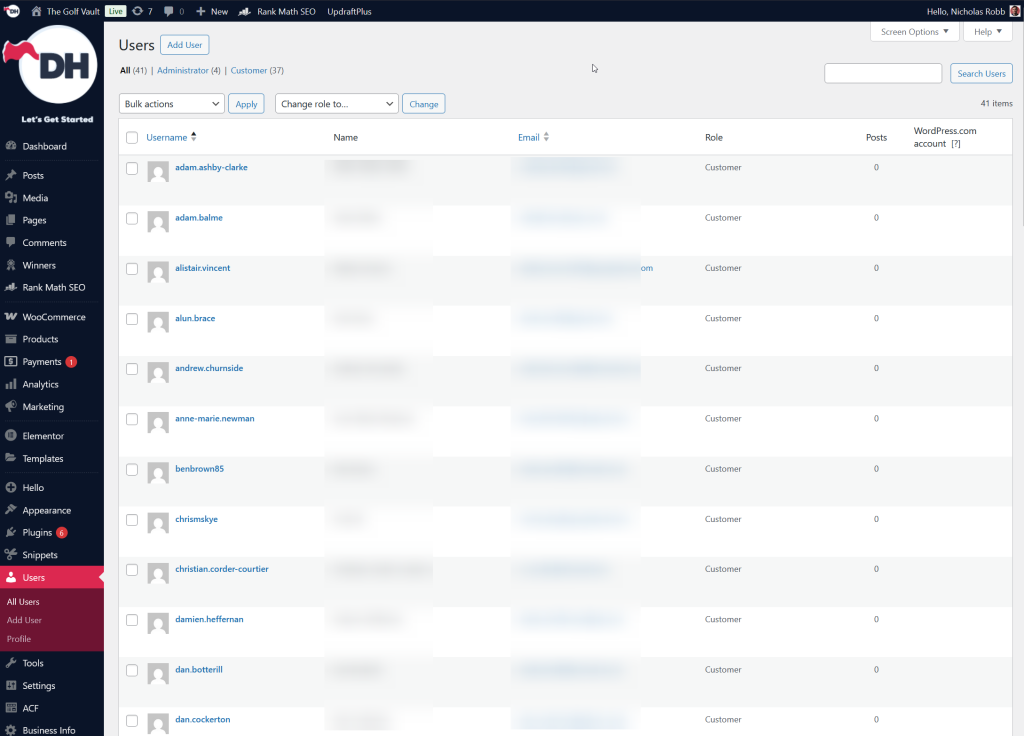
To view all existing users:
- Log in to your WordPress dashboard.
- Navigate to Users → All Users.
- You’ll see a list of all user accounts, including:
- Administrators
- Shop Managers
- Customers
- Subscribers
- Any custom roles added through plugins
You can use the search bar to find a specific user by name or email.
2. Understanding User Roles #
Your website includes several default roles, each with different permissions:
- Administrator: Full website control, including settings, plugins, theme and orders.
- Shop Manager: Can manage your website features such as:
- Orders
- Products
- Coupons
- Reports
- Cannot access website-wide settings or plugins.
- Customer: Created automatically during checkout or through manual registration. Customers can:
- Log in
- View orders
- Manage billing/shipping addresses
- Update account details
3. Editing a User Account #
To update a user’s profile:
- Go to Users → All Users.
- Hover over a user and click Edit.
- You can update:
- Name and email address
- Billing and shipping details
- Password and security settings
- User role
- Account status (active/inactive)
Click Update User to save changes.
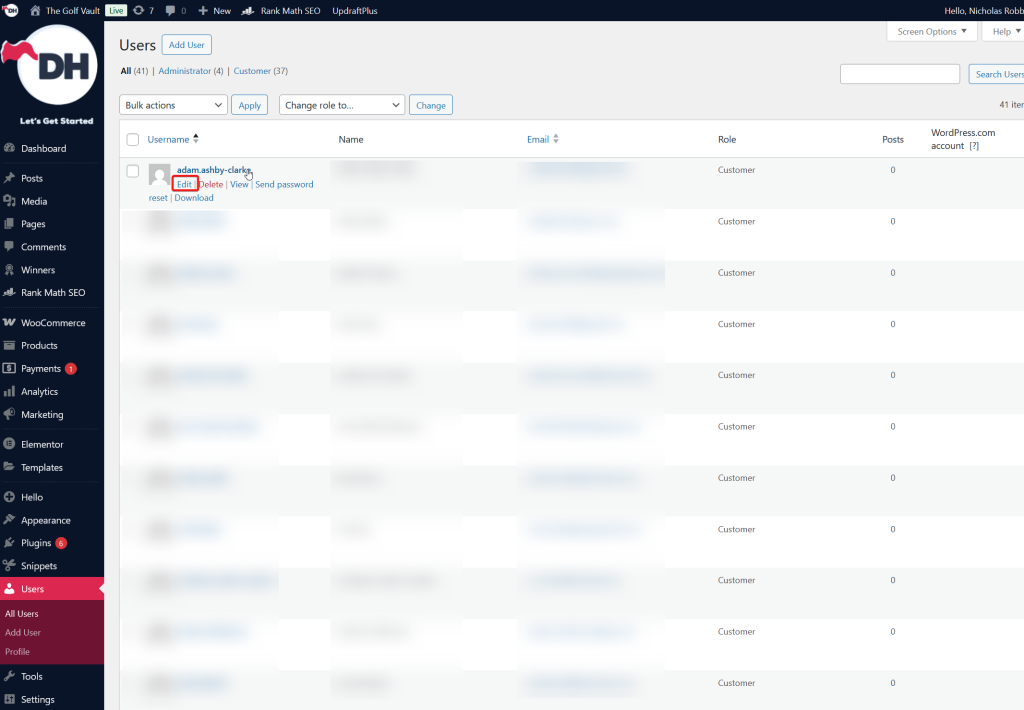
4. Resetting a User Password #
There are two ways to reset a customer’s password:
- From the Admin Dashboard
- Edit the user.
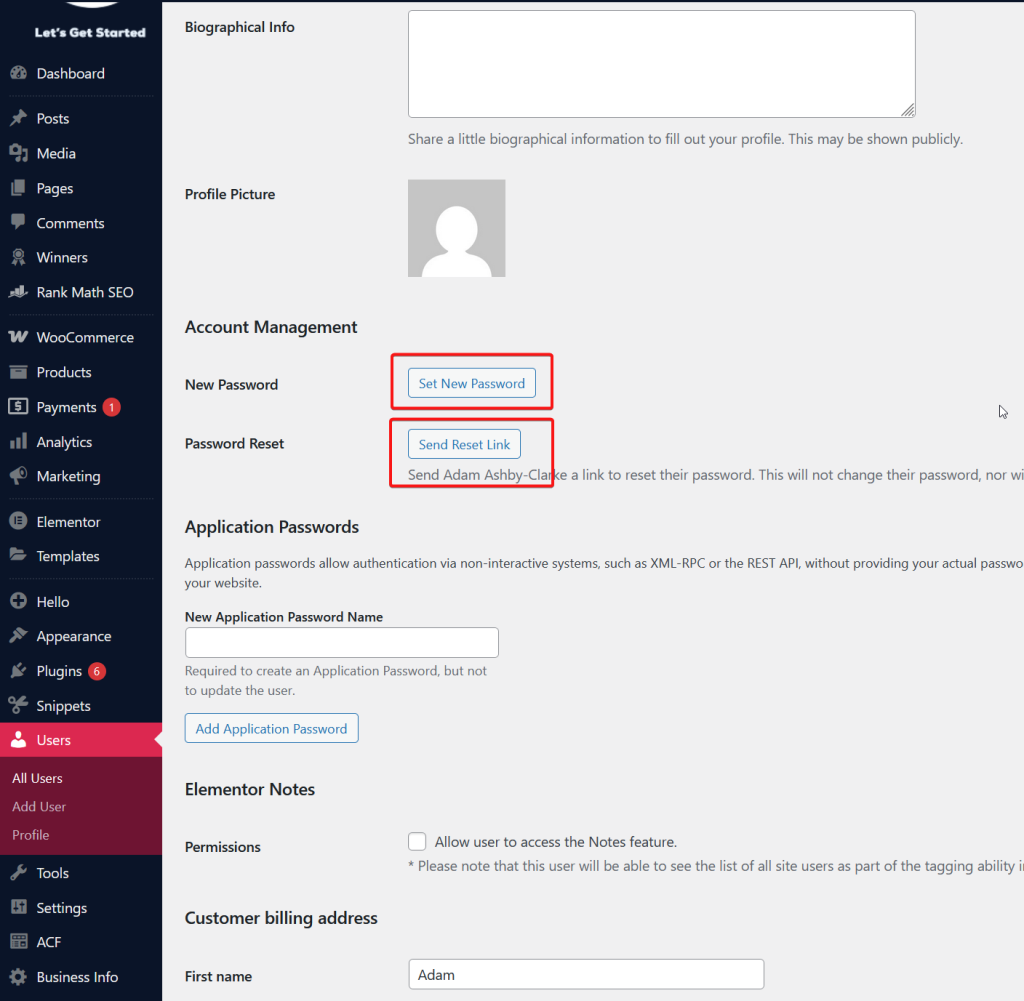
- Scroll to the Account Management section.
- Click Set New Password > Save the new password or leave the auto-generated one.
- Send Reset Link: Send the password reset link to the user
- From the Login Page
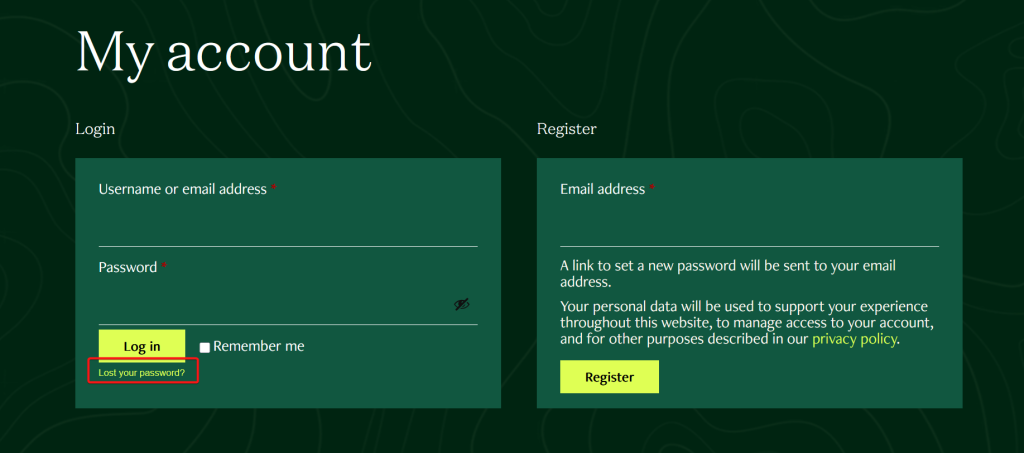
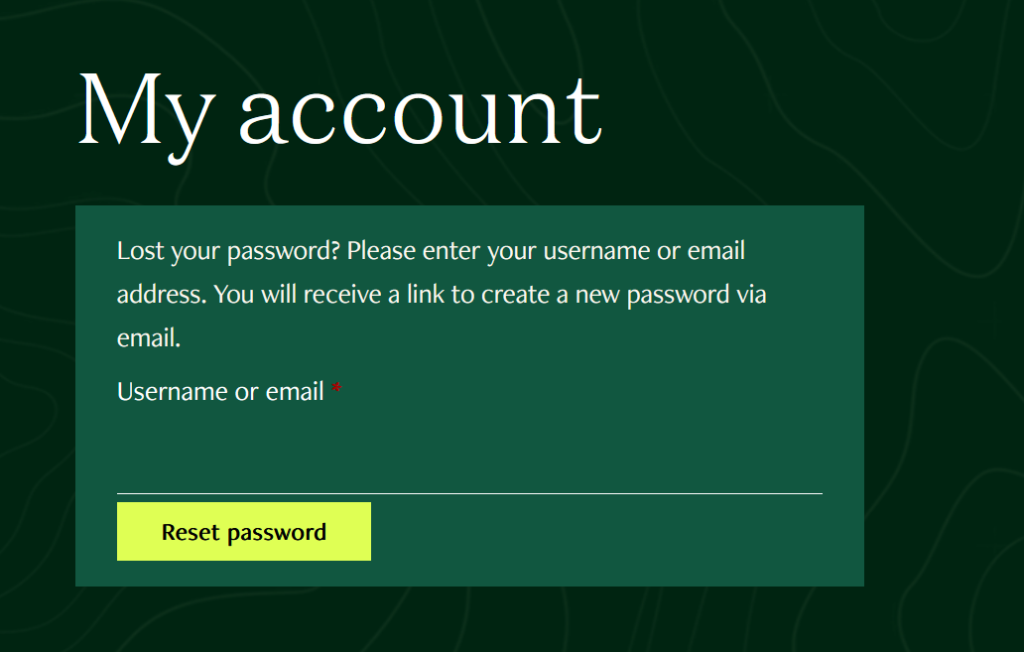
- Customers can click Lost your password? on the My Account login page.
- Your website will send them a secure password reset email.
5. Viewing Customer Details #
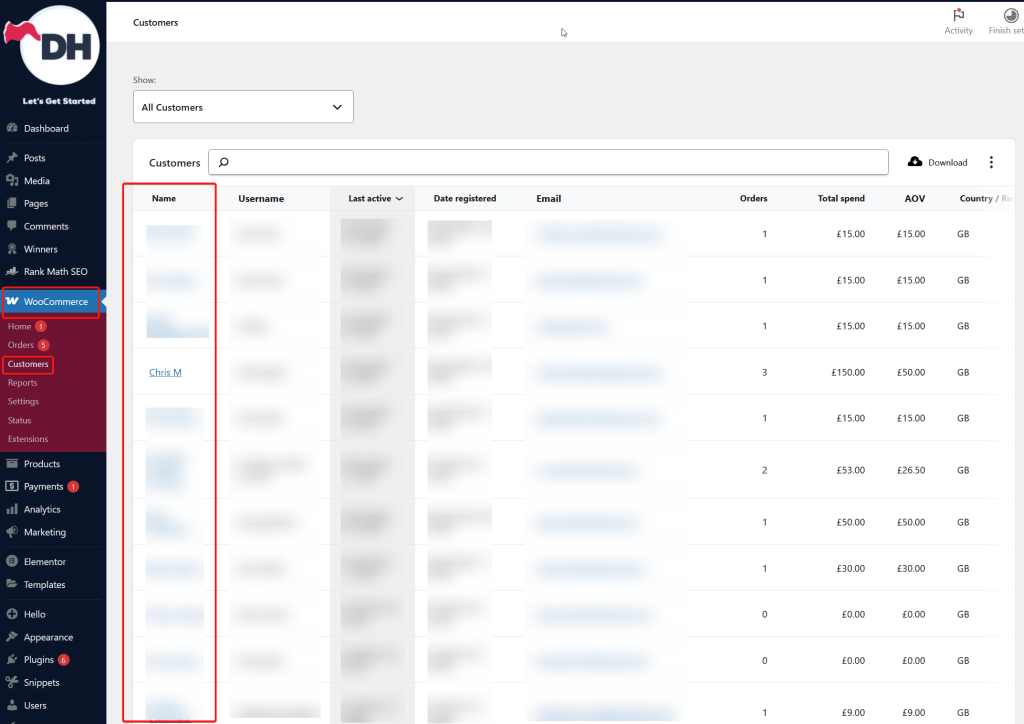
Your site stores additional customer information:
- Edit a user.
- Scroll to the WooCommerce Customer Data section.
- You can manage:
- Billing address
- Shipping address
- Default payment method (if applicable)
- Order history
- Account creation date
This helps with customer support, refunds, or custom order help.
6. Deleting a User #
- Go to Users → All Users.
- Hover over the user and click Delete.
- You’ll be asked what to do with their content (assign or delete).
Deleting a user will remove:
- Access to their account
- Their profile details
Their previous orders will remain in the store as part of your order records.