Looking to create predefined number of ticket options and offering discount with it? Then this is the perfect guide for your.
Creating bundle tickets increases your ticket purchases as users are drawn with the discount they get as they purchase more.
This can be applied to an ongoing competitions and new competitions.
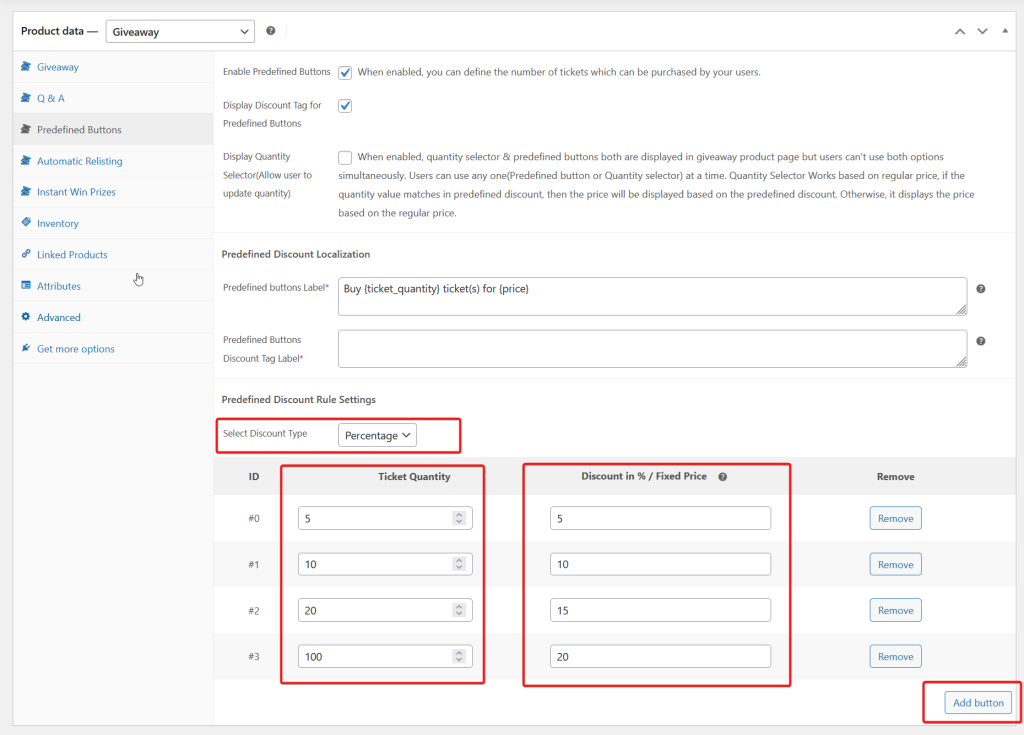
Step 1: Go to a the ‘Predefined’ tab #
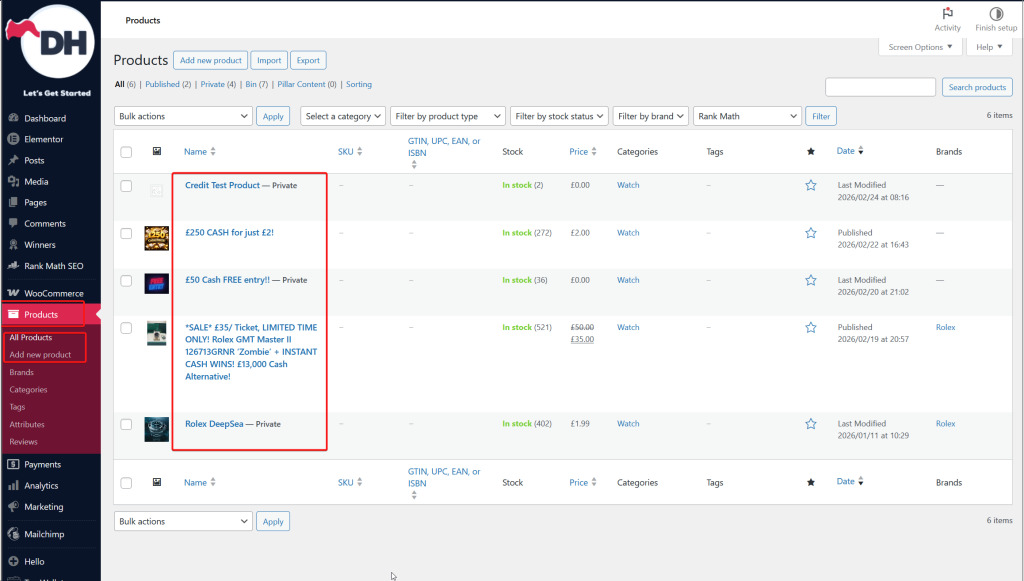
- Go to Products >All Product or Add a Product > Select a product > Product Data – Giveaway > Predefined Buttons
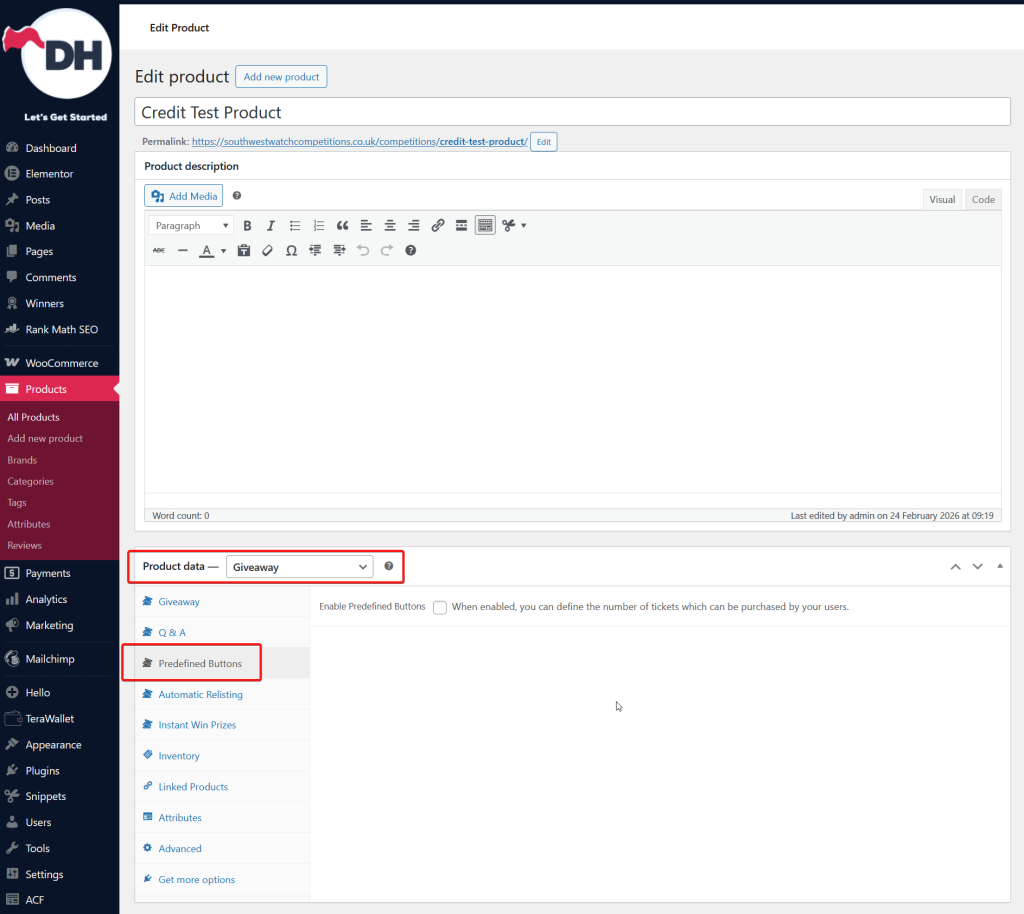
In this step, you will first land on an unchecked option.
Step 2: Configure the bundles #
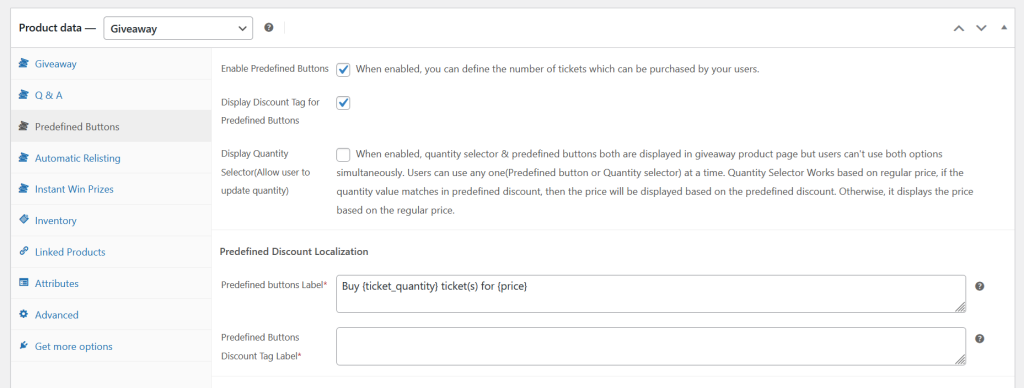
- Tick the ‘Enable Predefined Buttons’ checkbox
- Tick the ‘Display Discount Tag for Predefined Buttons’ checkbox
- On the ‘Predefined buttons Label’ setting, you can customize what you want to display on the frontend. Please see below shortcodes for the dynamic data
- {ticket_quantity} – Displays the Ticket Quantity
- {price} – Displays the Price
- {discount} – Displays the Discount
For example: Buy {ticket_quantity} ticket(s) for {price}
- For the “Predefined Buttons Discount Tag Label” label, you can customize it or you can leave it blank.
Step 3: Adding your bundles #
At this point feel free to add the number of tickets and its corresponding discount.
- Make sure to select what type of discount you want to select.
- Pecentage or,
- Fixed
- Click the ‘Add button’, to start adding the bundle.
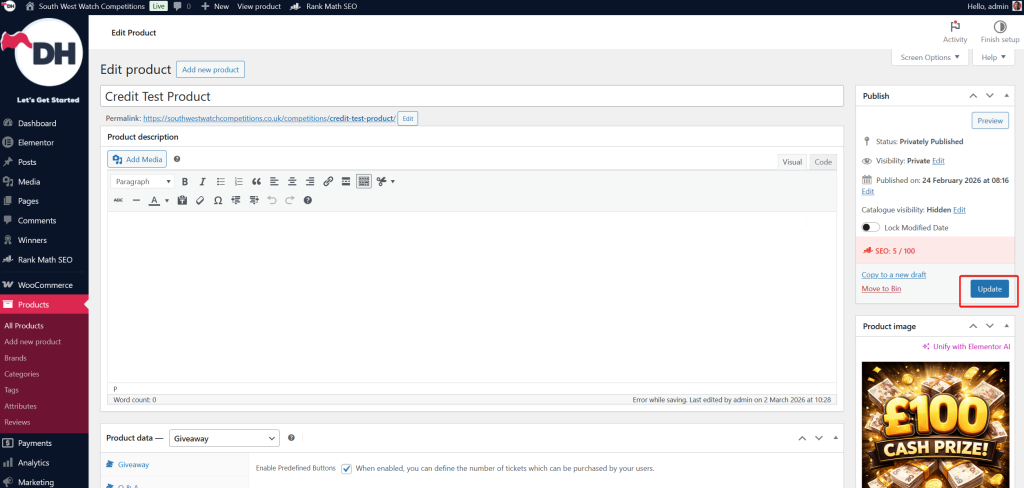
Step 4: Hit the ‘Update’ button. #
Do not forget to save your changes by clicking the ‘Update’ button