This guide walks you through how to add “Instant Win” prizes to an existing competition or raffle — enabling participants to win smaller prizes immediately upon ticket purchase, increasing engagement and excitement.
1. Enable Instant Win #
You can enable instant wins for existing or new competitions
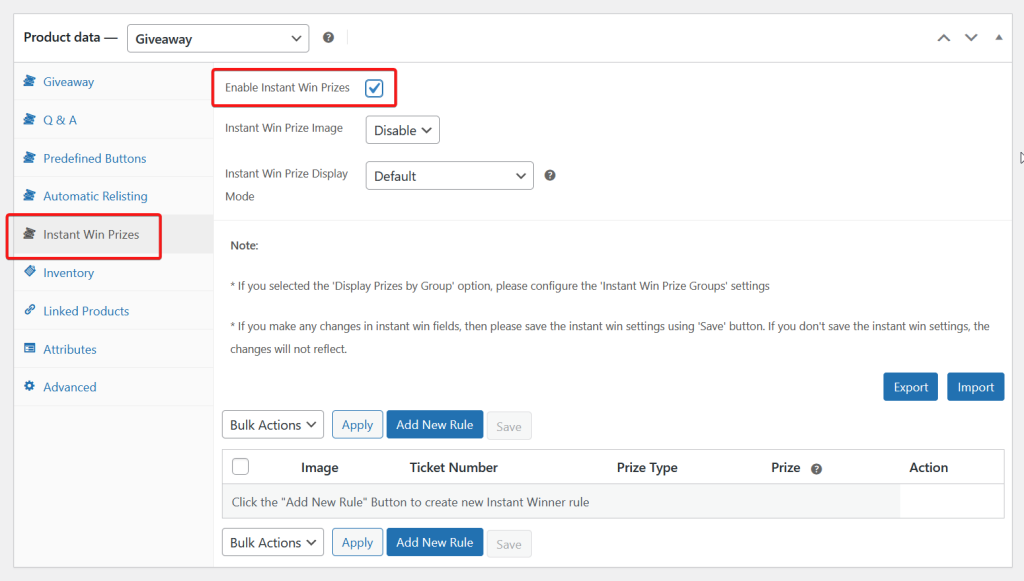
- On the Dashboard, go to Products > Select any competition or in a process of creating a new competition.
- Go to the Instant Win Prizes tab.
- Tick the ‘Enable Instant Win Prizes‘ checkbox.
2. Configure Instant Win settings #
- Instant Win Prize Image
- Enable: Put images for each instant win. (We recommend this)
- Disable: No images for instant wins
- Instant Win Prize Display Mode
- Default: Instant prizes are displayed separately
- By Group: Display prizes in a group
2.1. Display mode: Default #
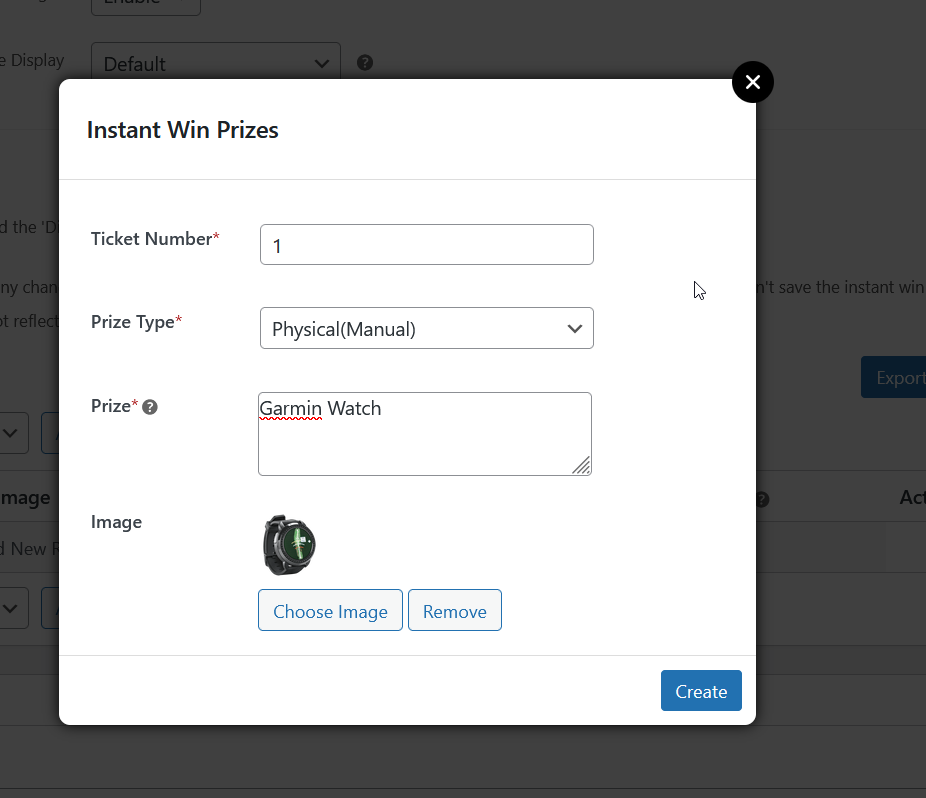
- Add new Rule
- Input Ticket Number
- Prize Type
- Physical (Manual): Instant Win prize is given manually
- Coupon: A coupon code users can use for discounts.
- Select or create a coupon code.
- Please see here on how to create a coupon.
- Product: An existing product on the website.
- Prize: Instant Win Prize message
- (Optional) Image: The instant win thumbnail
- Click the ‘Create‘ button
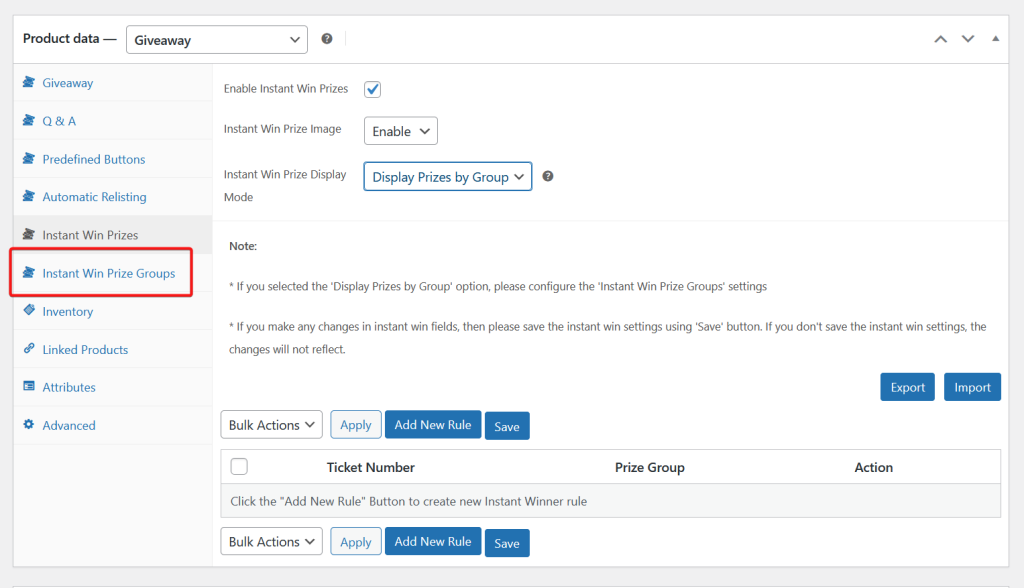
2.2 Display Mode: By Group #
Selecting this display mode creates a new tab: Instant Win Prize Groups
2.2.1 Create an Instant Win Prize Group #
- Go the the Instant Win Prize Groups tab
- Click the ‘Add New Prize Group‘ button.
- Input the Group Title
- eg, Cash, Site Credit etc.
- Image – The Instant Win Group thumbnail
- Prize Type
- Physical (Manual): Instant Win prize is given manually
- Coupon: A coupon code users can use for discounts.
- Select or create a coupon code.
- Please see here on how to create a coupon.
- Product: An existing product on the website.
- Group Prize Message – the message displayed on the instant win table
- Hit the Create button
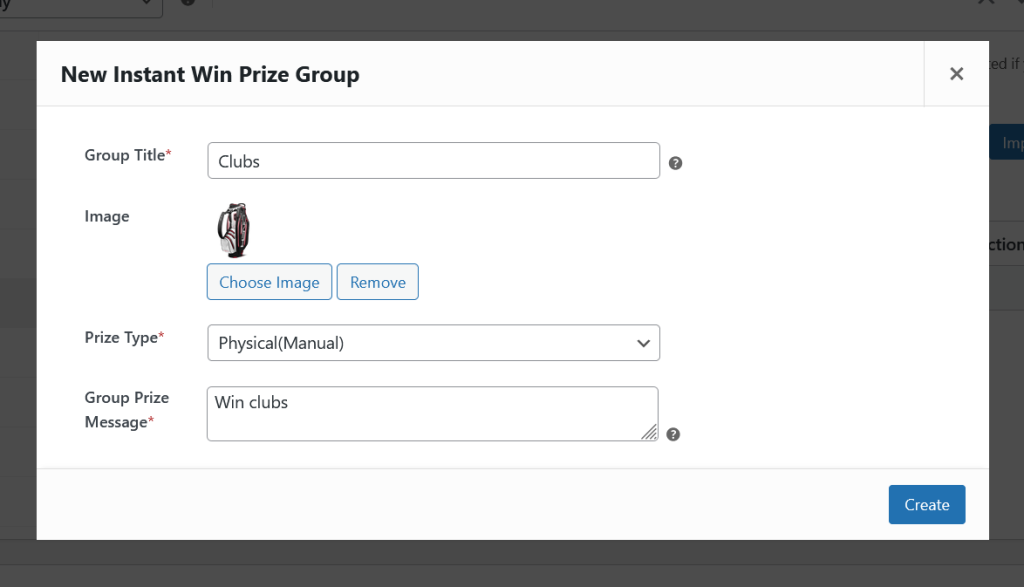
You can create unlimited Instant Win Prize Group
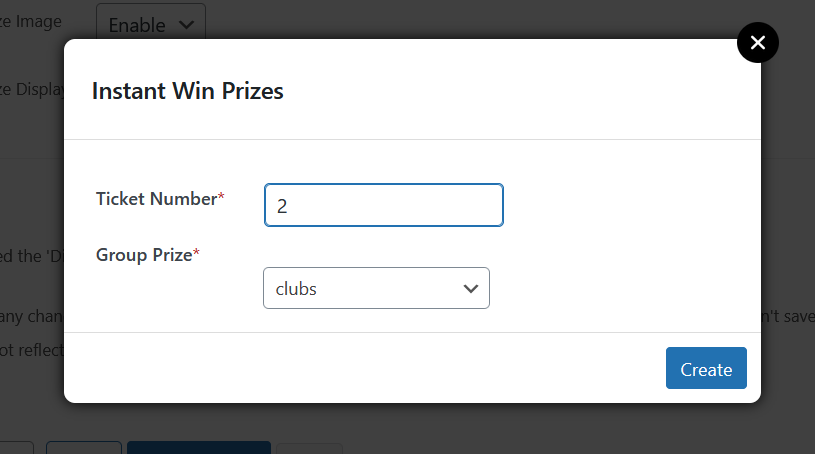
2.2.2 Assign an Instant Win to a Group #
After creating the Instant Win Group, it is now time to create the Instant Win Prizes and assign it to a group.
- Go the Instant Win Prize tab
- Click the ‘Add New Rule’ button
- Input the Ticket Number
- Select the Instant Win Group